
Help
Search
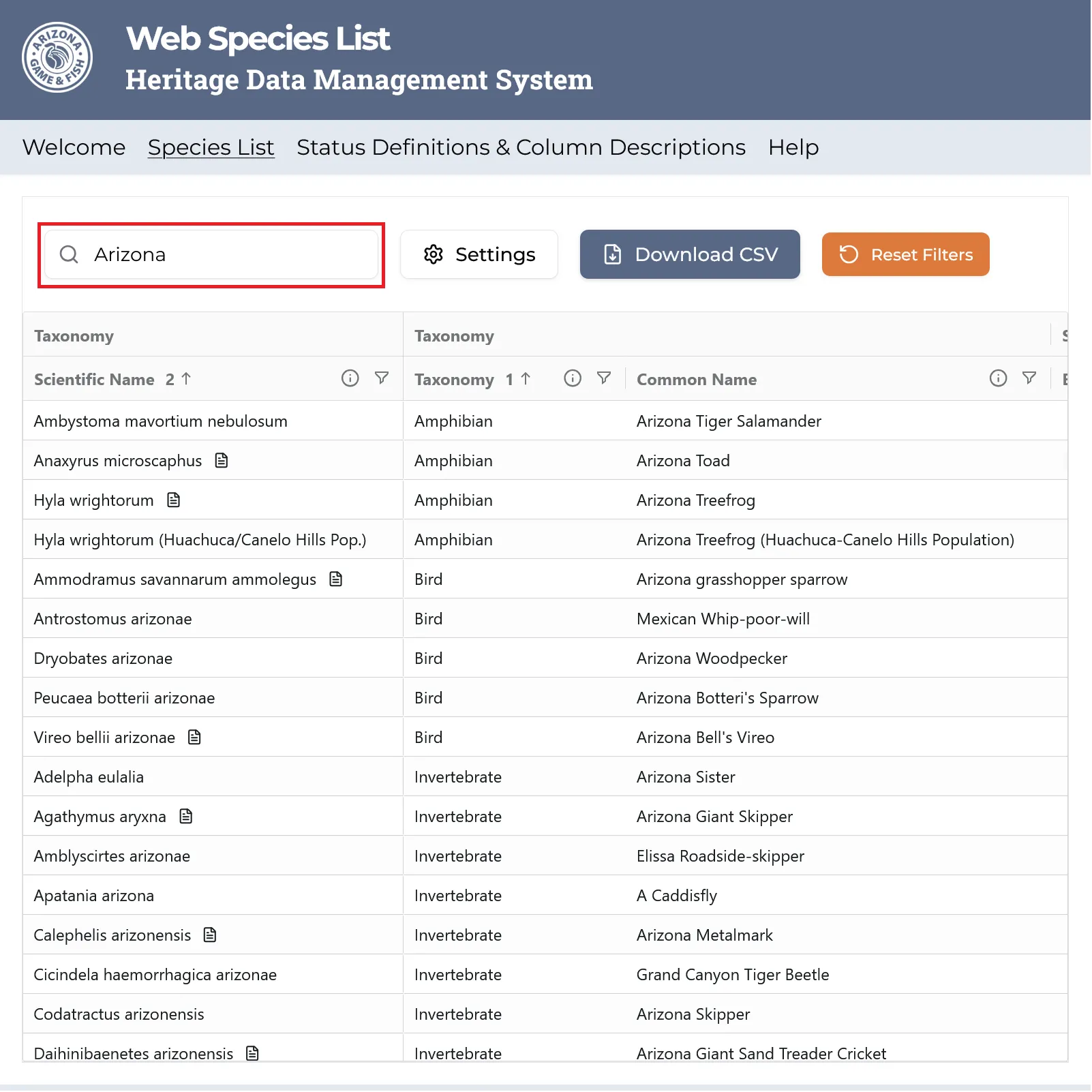
Use the search bar for quick searches. It will search across all active columns.
Use a preset
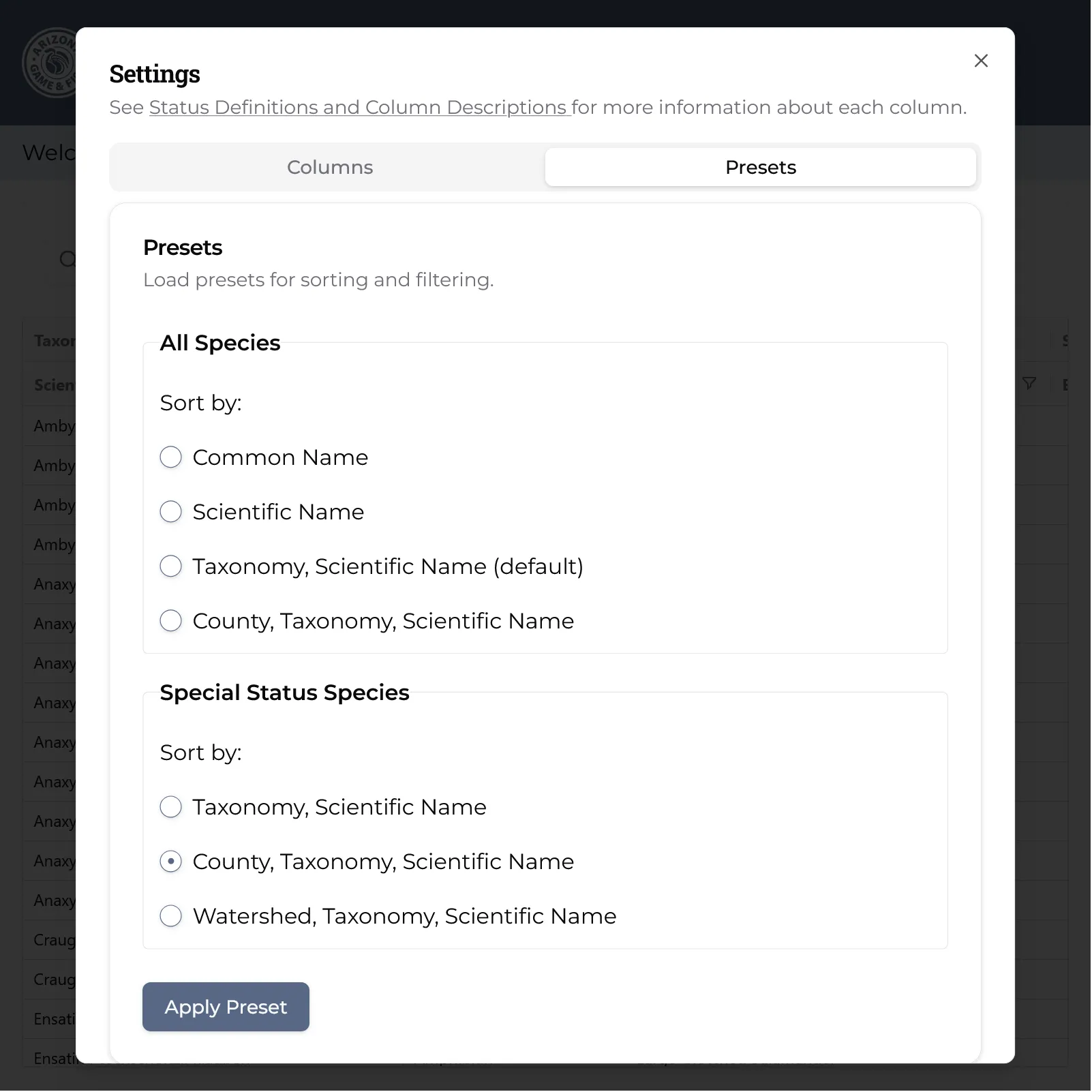
There are a number of presets available to quickly filter and arrange the data.
Click on the Settings button, then the Presets tab. These presets correspond to the active columns, sorting and filtering options that were previously available in the static PDF species lists.
Columns
Activate / deactivate / pin
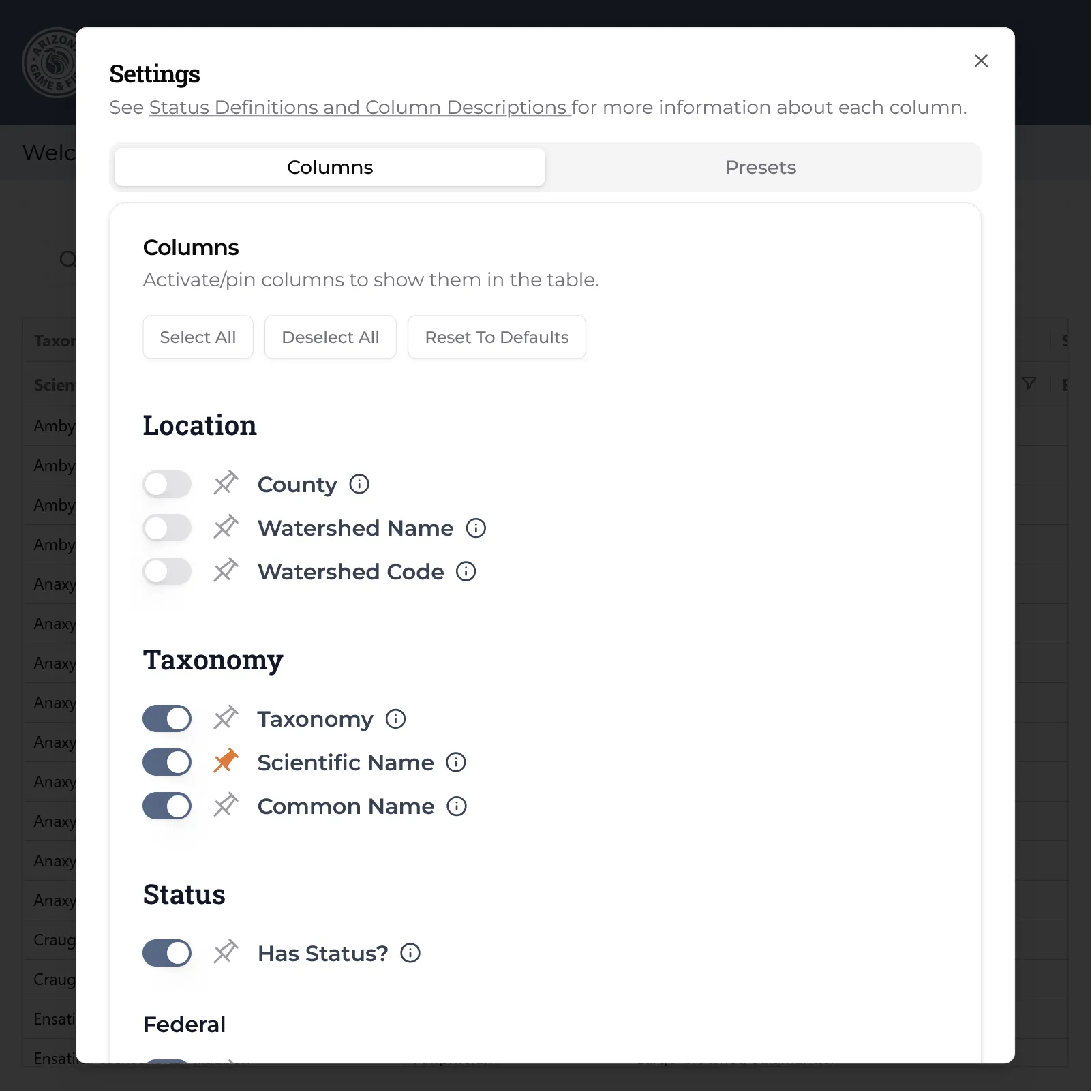
Click on the Settings button to manage your columns. Click Save to activate your settings.
By default the following columns are hidden:
- County
- Watershed
- Watershed Code
The switches toggle whether the column is visible or not.
Clicking the pin icon will “pin” the column to the left side of the table, remaining visible as you scroll horizontally.
Sort

To sort by a column, simply click on the header of the column you want to sort by.
To sort by multiple columns, shift+click on the columns in the priority order you want to sort them by.
By default, the list is sorted by Taxonomy and Scientific Name.
Order

Column headers can be dragged to a new position to reorder the columns.
Filtering
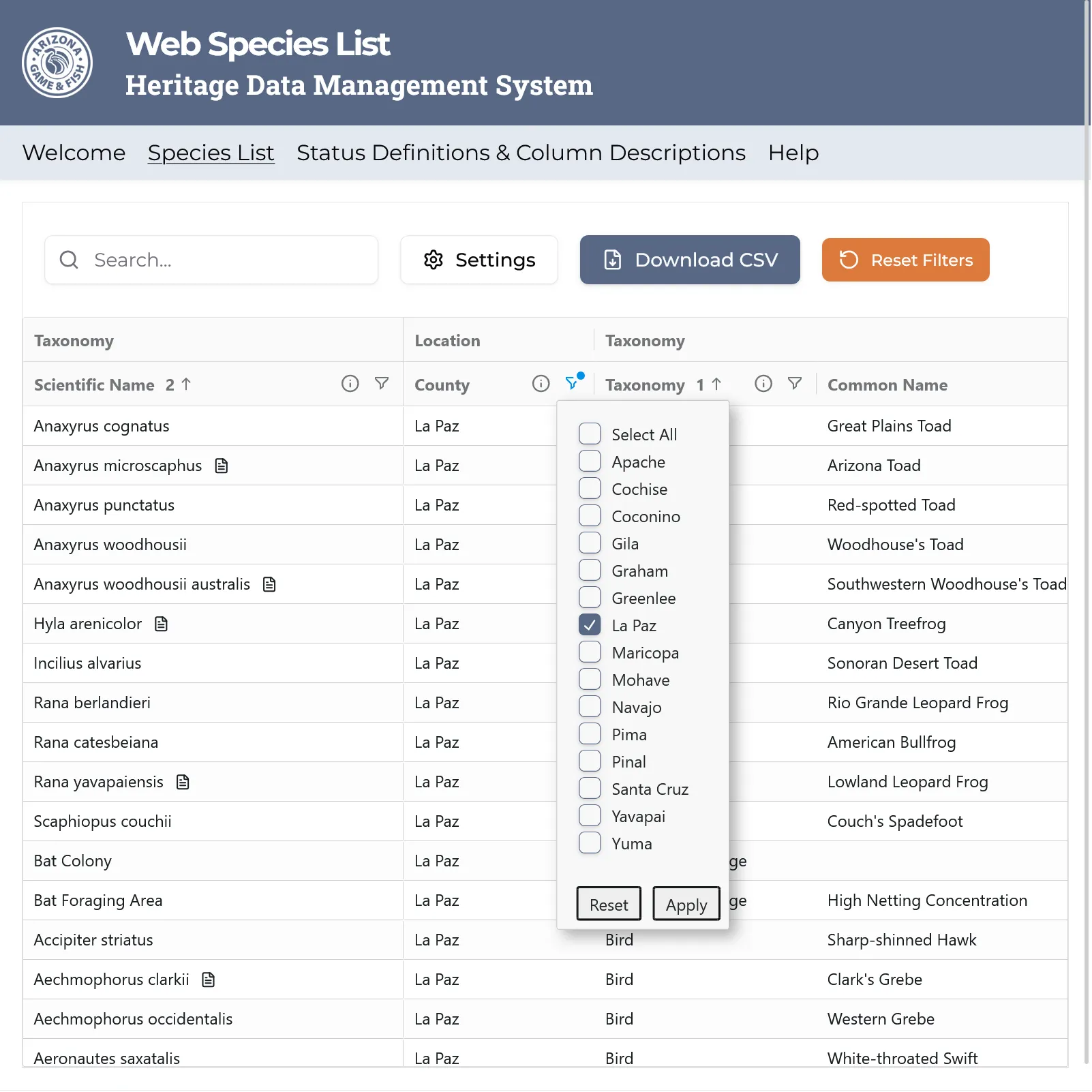
Click on the funnel icon next to the column you want to filter by.
Set your filtering preferences then click Apply. You can reset that specific filter by clicking the Reset button. To clear all filters, click the Clear All Filters button above the species list grid.
Download a CSV
After configuring your desired columns and filters, click Download CSV to download a CSV file of the data.